// INSTALLATION.GUIDE
Installation Guide
Your service works on any app that supports the Xtream Codes API. Enter the login below once, and your channels and TV guide load automatically.
Your Xtream login
Server URL
https://stream.pulsegrid.tvUsername
pg_xxxxxxxxxxPassword
pgs_xxxxxxxxxxxxxxxxxxxxHow it works
You only ever enter the three values above. PulseGrid serves the channel list and guide from stream.pulsegrid.tv, and video streams from cdn.pulsegrid.tv. Your login is unique to your account — keep it private.
Step-by-step: IPTV Smarters Pro on Fire TV / Firestick
Every other device uses the same login — only the install method changes (see “Other devices” below).
1
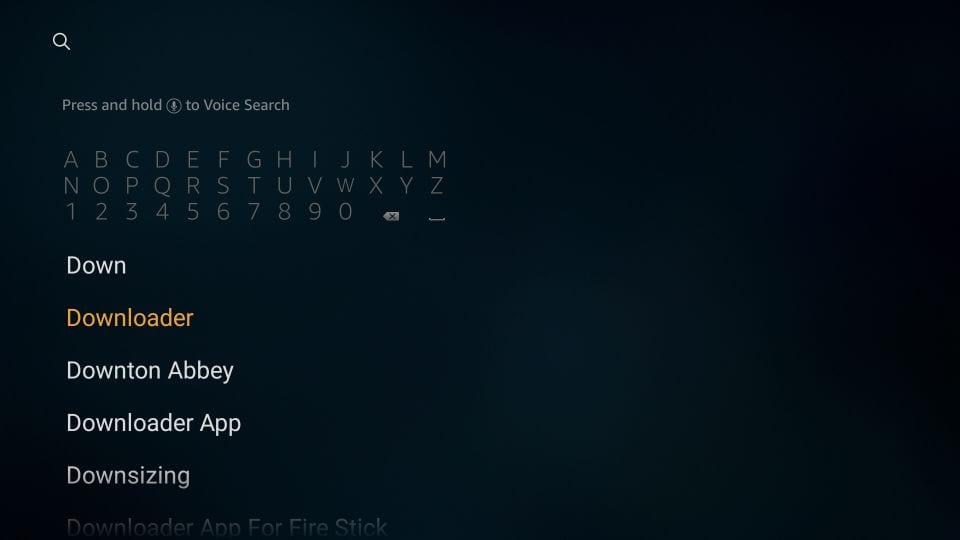
Find the Downloader app
On your Fire TV home screen, search for “Downloader” and install it — you’ll use it to side-load the player.
2
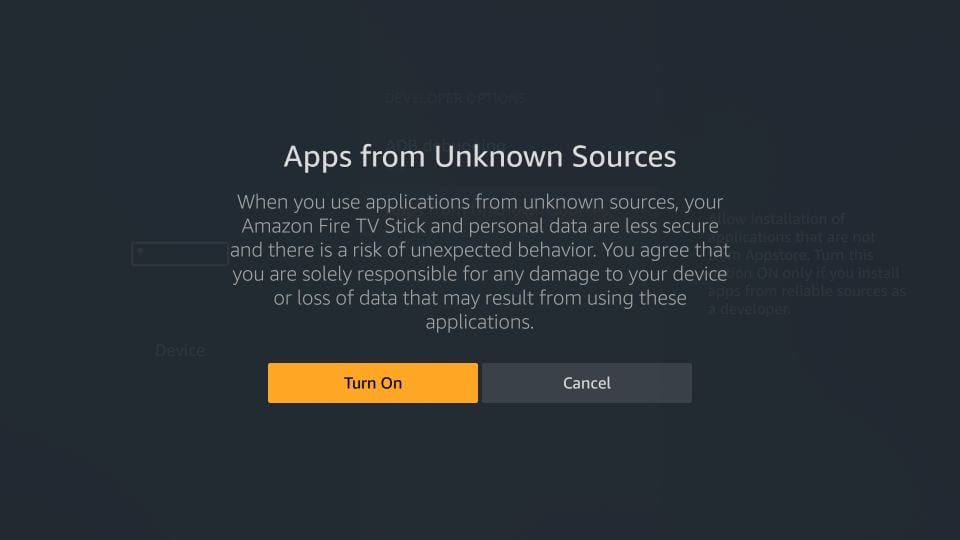
Allow app installs
In Settings → My Fire TV → Developer Options, enable “Apps from Unknown Sources” and choose Turn On.
3
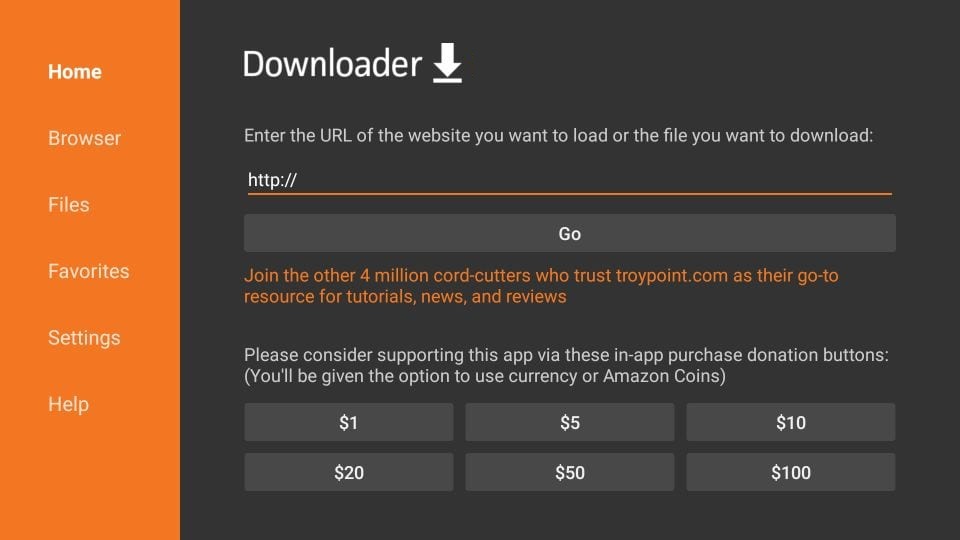
Open Downloader
Launch Downloader and select the URL field on the Home tab.
4
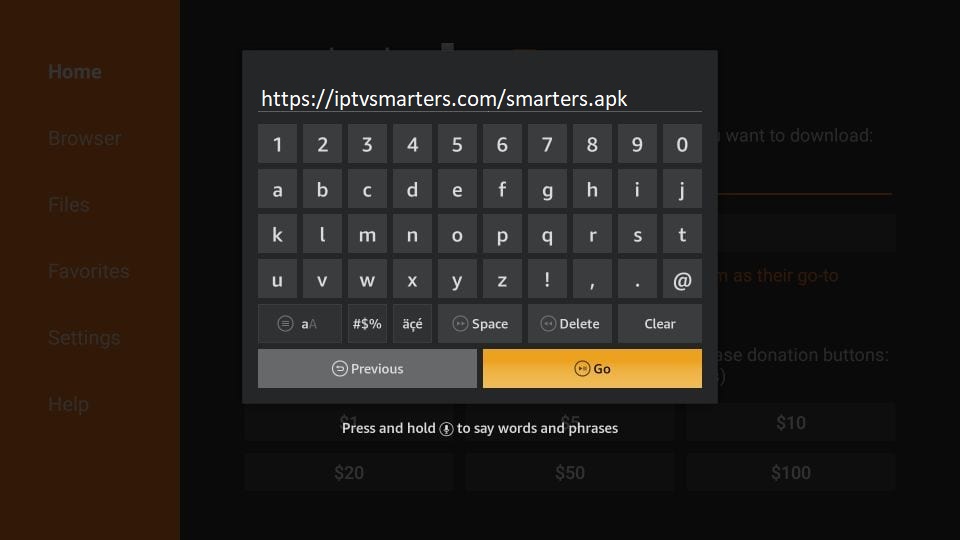
Enter the app link
Type https://iptvsmarters.com/smarters.apk and select Go.
5
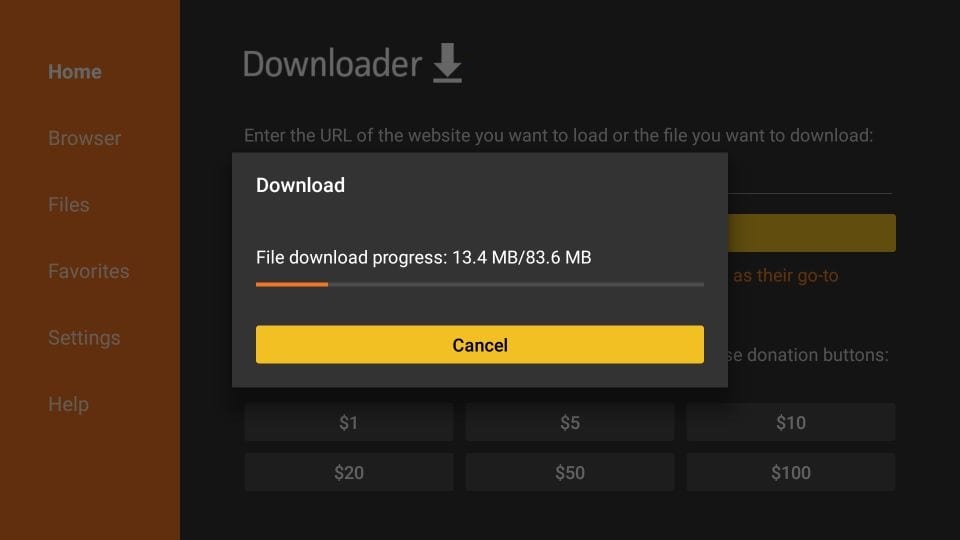
Let it download
Wait for the IPTV Smarters Pro file to finish downloading.
6
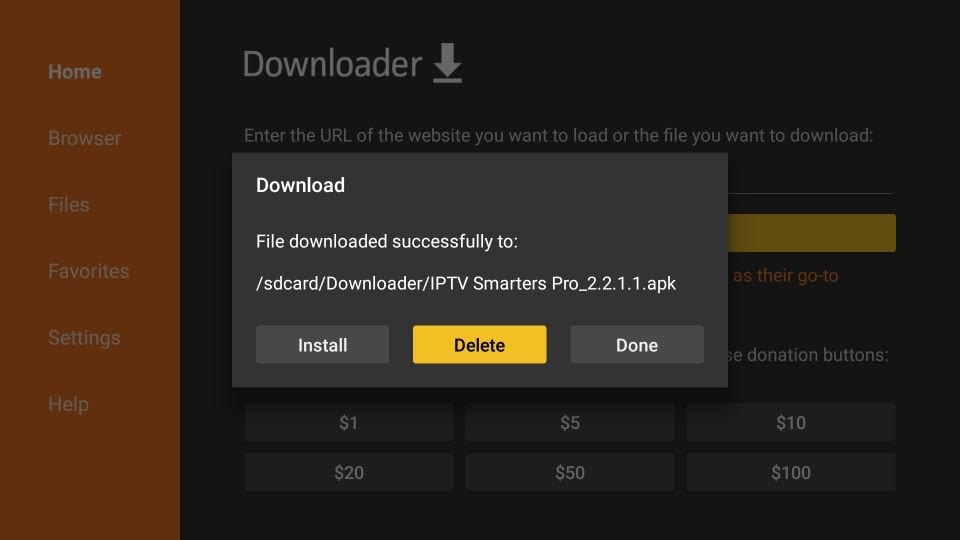
Install the app
When the download completes, select Install.
7
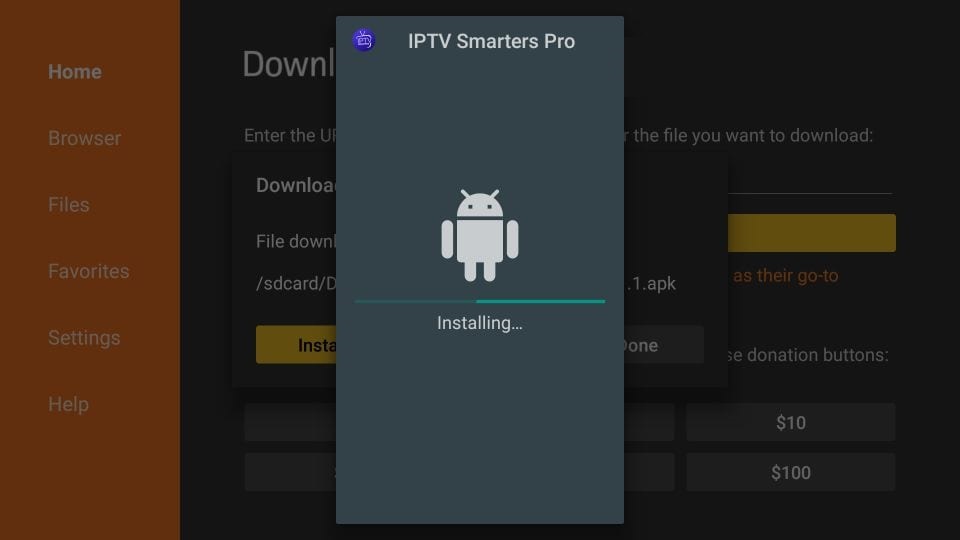
Installing
Fire TV installs IPTV Smarters Pro — this takes a few seconds.
8
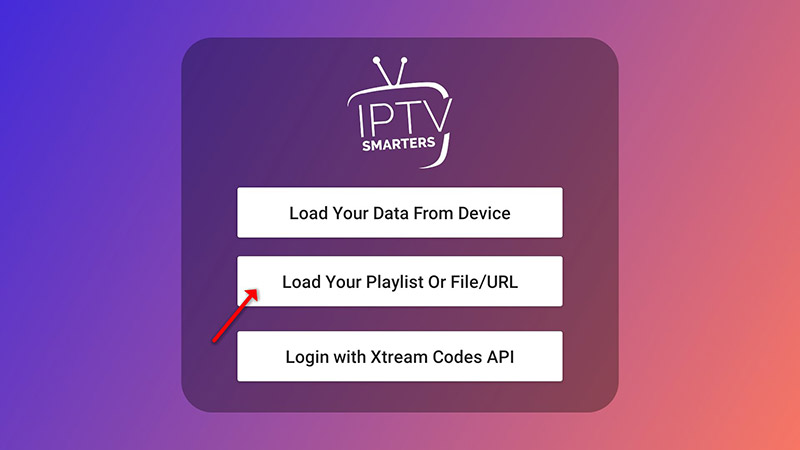
Choose Xtream login
Open IPTV Smarters Pro and select “Login with Xtream Codes API” (not the M3U option).
9
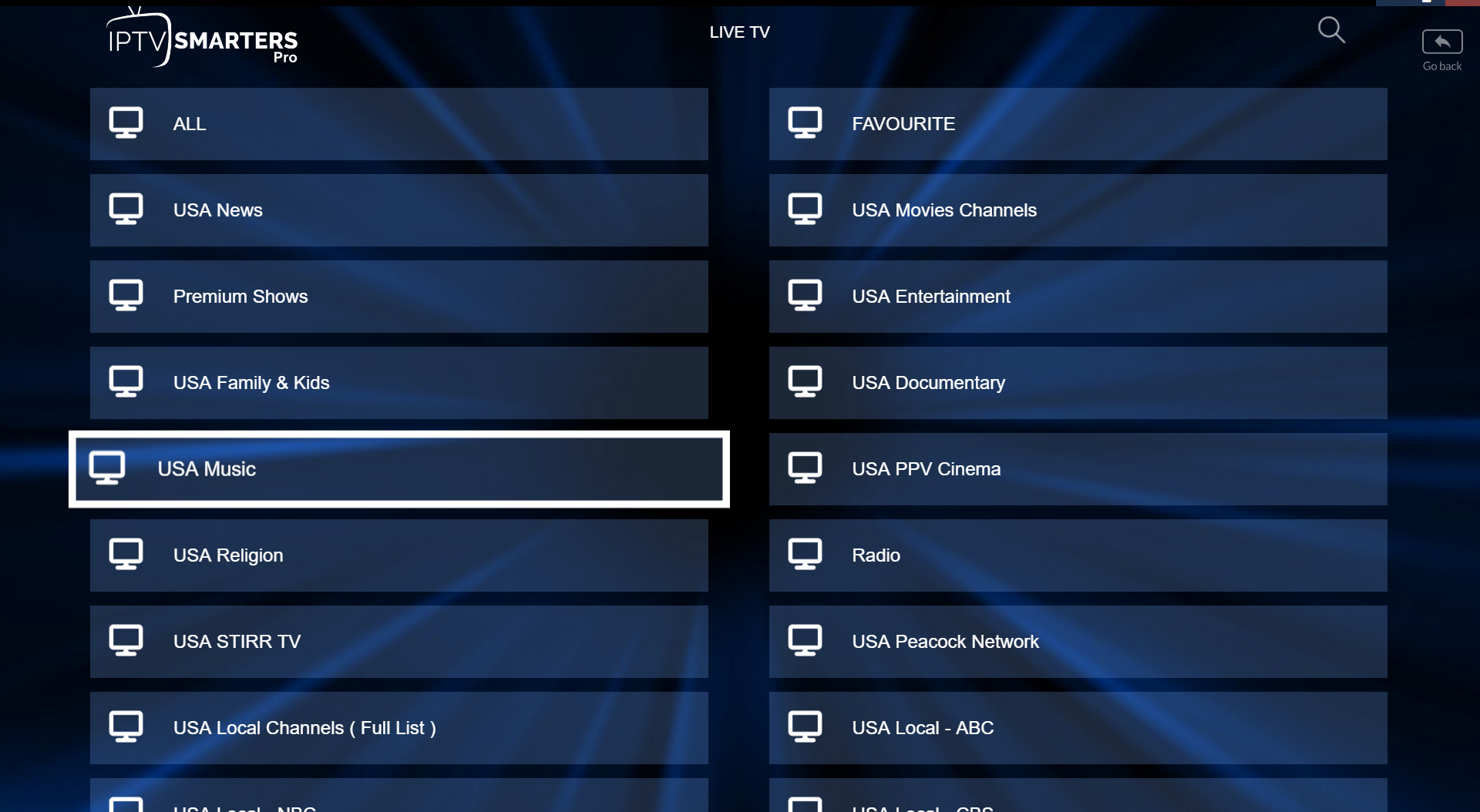
Enter your login and enjoy
Enter any name, then the Server URL, Username and Password from the box above, and save. Your channels and TV guide load automatically.
External player — highly recommended
Set a dedicated player (MX Player Pro) as TiviMate / Smarters' external player. This is a must for: closed captions on movies (especially foreign films), advanced audio tuning (dialogue boost, EQ, DRC), and almost every Format error / Unable to play toast you'll see on a Firestick.
Install MX Player Pro via Downloader
- Install Downloader by AFTVnews from the Amazon Appstore (free).
- Allow installs from unknown sources — same toggle from the Smarters install above.
- Open Downloader → select the URL/search field → enter one of the codes below → press Go.
- When the APK finishes downloading, select Install.
9400991MX Player Pro (preferred)
Paid version. Best CC + audio EQ + decoder switching.
74239MX Player Pro (alternate mirror)
Backup if the primary code rolls dead.
987238MX Player (free, ads)
404956VLC for Fire TV
Open-source fallback. Robust codec coverage; CC support varies by stream.
Wire it into TiviMate (or Smarters)
- Open TiviMate → Settings → Playback → External player.
- Select MX Player Pro from the dropdown.
- Optional: toggle “Use external player by default” so every channel opens through MX. You can also override per-channel from the channel settings.
- IPTV Smarters Pro: Settings → Player Selection → External Players → add MX Player Pro and mark it default.
Codes change occasionally. If the primary code stops working, try the alternate. Or search
MX Player Pro APK in Downloader directly.Other devices
The login is identical everywhere — only how you install the app changes:
›Android phone / tablet / Android TV: Install IPTV Smarters Pro or TiviMate from the Google Play Store.
›Samsung / LG Smart TV: Install IPTV Smarters Pro or Set IPTV from the TV’s app store.
›iPhone / iPad / Apple TV: Install IPTV Smarters or GSE Smart IPTV from the App Store.
›Windows / macOS: Install the IPTV Smarters desktop app.
Then open the app, choose Login with Xtream Codes API, and enter the Server URL, Username and Password from the box above.
Troubleshooting
Re-check the Server URL, Username and Password — they are case-sensitive and easy to mistype. Use the copy buttons above. Confirm your subscription is active in your dashboard.
This service is for authorized use only. Need help? Contact your PulseGrid administrator.